🛟 This is your Life Raft
-
Copied!
curl -O https://liferaft.altweb.me/rustdesk.sh && chmod +x rustdesk.sh && ./rustdesk.sh -
Open the start menu either with your keyboard, by holding the CTRL key and clicking ESC
or with your mouse, by clicking the button in the lower left hand corner of the screen.
-
Open the terminal thusly:
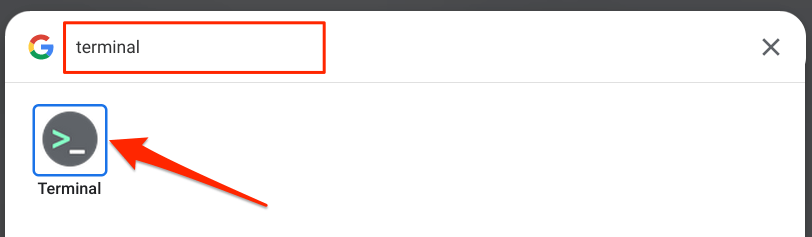
- Paste into the terminal by clicking CTRL-SHIFT-V and then hit ENTER.
- Tell (or show) Spencer what it says in the terminal.
-
Look for a window that looks similar to the following:
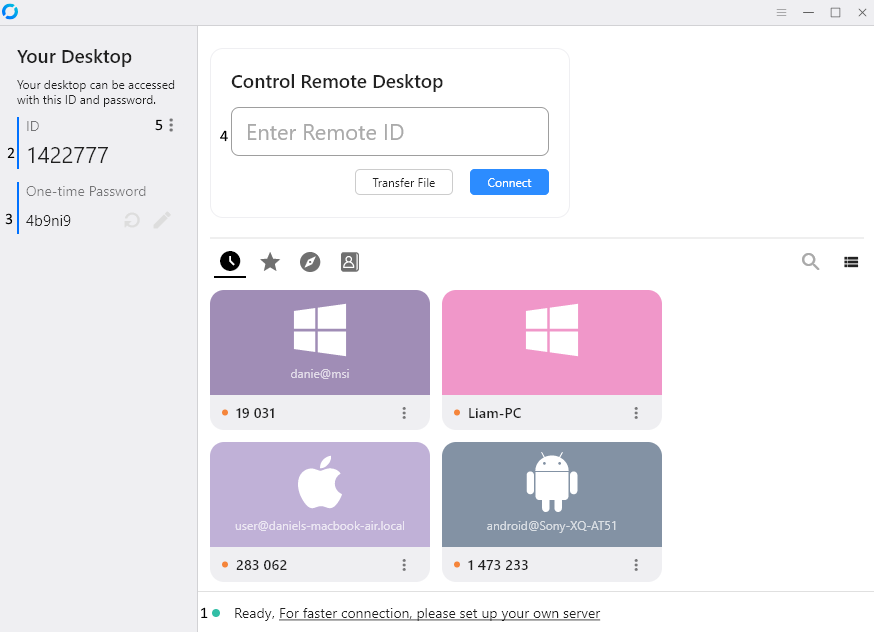
If you don't see that window, go back to the start menu (CTRL-ESC) and start typing
"rustdesk"
. Then click on the RustDesk icon when you see it. - In RustDesk, look in the top right of the window, and you'll see three horizontal lines. Click that.
- Still in RustDesk, if you see a blue button that says "start" underneath the word "service", click "start".
- Stil in RustDesk, on the left there's a gray bar with the word "Network". Click "Network".
- Still in RustDesk, click the button "unlock network settings" and type in the main password for this computer.
- Still in RustDesk, find the line that says "ID Server" and paste (CTRL-V) into the box next to it, and then click the blue button that says "apply".